Search Tips




|

|
Exporting Logs and Menus and Importing Menus with USB

|
Tap the Lock icon to unlock editing. A password screen displays. Type 1122, and then tap the Green Checkmark to continue, or Back arrow to exit without making a change. When finished, tap the Lock icon to lock editing. |
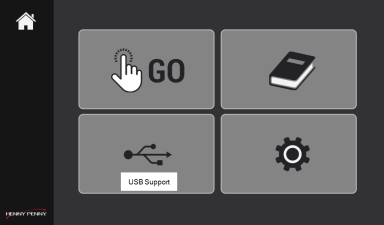
Navigation: Home > Import / Export Menu (USB Support)
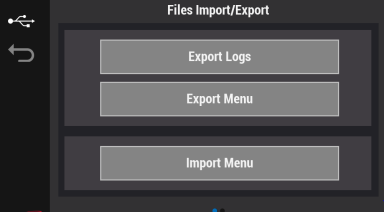
The following options display:
-
Export Logs
-
Export Menu
-
Import Menu
Exporting Logs
Export logs to provide behind the screen troubleshooting details for engineering.
Required: Sandisk (or equivalent) 16 GB version 2.0 plastic USB Drive
Navigation: Home > File Import / Export > Export Logs
-
Access Files Import / Export menu.
-
Insert the USB drive into the USB port, and wait for the menu to turn blue, this indicates the USB port is ready.
-
Tap the Export Logs option from the menu, type 1122 for the Manager PIN (password), and then tap the green checkmark to continue. The following options display:
- Last Day
- Last Week
- All
-
Speak with support to clarify which option they want you to select.
-
Select the required option, and then tap the green Export button. The export completes.
-
Remove the USB drive from the USB port.
-
Load the logs onto a laptop and email to support.
Exporting a Menu
Export a menu from one unit and import to another, to save time.
Required: Sandisk (or equivalent) 16 GB version 2.0 plastic USB Drive
Navigation: Home > File Import / Export > Export Logs
-
Access Export Menu.
-
Insert the USB drive into the USB port, and wait for the menu to turn blue, this indicates the USB port is ready.
-
Tap the Export Menu option from the menu. Wait. Export Finished displays.
-
Tap the Green Checkmark.
-
Remove the USB drive from the USB port.
Importing a Menu
Import a menu from another unit, to save time.
Required:
- Sandisk (or equivalent) 16 GB version 2.0 plastic USB Drive.
- Using a laptop, remove all files from the USB drive except the .JSON menu file. This prevents loading issues.
Navigation: Home > File Import / Export > Import Logs
-
Access Import Menu.
-
Insert the USB drive into the USB port, and wait for the menu to turn blue, this indicates the USB port is ready.
-
Tap Import Menu, type 1122 for the Manager PIN (password), and then tap the green checkmark to continue.
- Import Finished displays
- Menu will now reload displays.
-
Tap the green checkmark button. The system may reboot.
-
Remove the USB drive from the USB port.