Search Tips


Troubleshooting the Cloud Connection
Use these steps to determine if you have a connection to the cloud (Internet).
Verifying Cloud Connection
-
Verify the settings by navigating to: Menu > Advanced > Network Setup > Network Information.
-
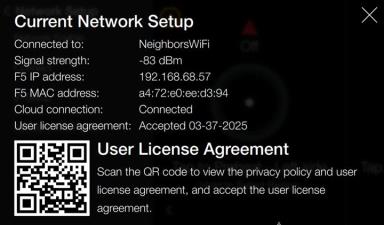
Review the Current Network Setup:
-
Cloud connection: [e.g., Connected] displays the state of the radio, whether connected or disconnected.
-
If disconnected and all other verifications have been performed:
-
Install a cellular gateway to determine if the issue is with the customer's network, for example model ICG-150 cellular gateway.
-
Contact Technical Service for assistance.
Connecting to the Internet
Use these steps to verify connection to the cloud.
-
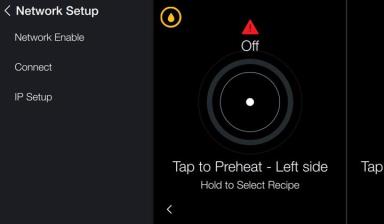
Once the network is enabled, additional options display, select Connect.
-
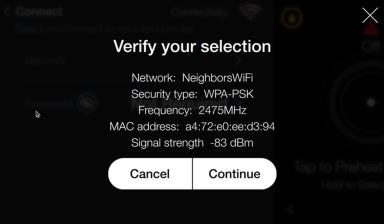
Select a radio button next to the desired access point (router name) to connect.
-
Select Continue to connect.
-
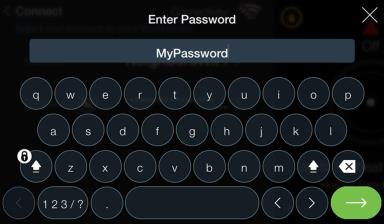
Enter the password for the selected access point.
-
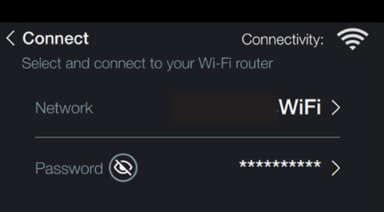
Wait for the Wi-Fi symbol to display next to connectivity. When the symbol displays, continue to the next step.
-
Select Connect to exit.

IMPORTANT: A connection signal strength between 0 and -80 dBm is required. A poor connection may not allow the certificate to download properly.
NOTE: If option “Select to type network name” is selected, a keyboard will display. Enter the name of the network, an approved Security type, and password if required.