Search Tips



Troubleshooting Radio Software Setup
Use these steps to determine if the control Radio (dongle) hardware is installed and the control's software configured correctly.
Verify Radio Software Setup
Start at the appliance and determine the following:
-
From the number one control (starting on the far left), navigate to Menu > Advanced > Network Setup. Is the network enabled (the Enable Network slide button is green)?
-
If Yes, review the network configuration and continue to diagnose.
-
If No, continue at Enabling the Wi-Fi Radio below.
-
-
Select the Enable Network slide button. Does the Enable Network slide button turn green?
-
If Yes, review the network configuration and continue to diagnose.
-
If No, the region selection during the initial setup is not approved, the Enable Network slide button will not be allowed to enable the network. Selecting the slide switch will have no effect. Contact Technical Support.
-
Enabling the Wi-Fi Radio
-
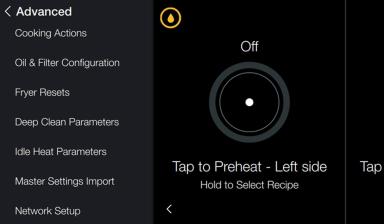
Navigate to Menu > Advanced > Network Setup.
-
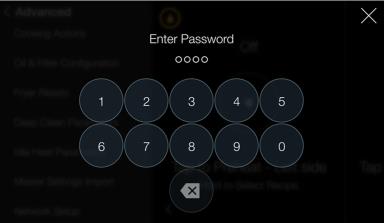
Enter the password, either service or manager (1234).
-
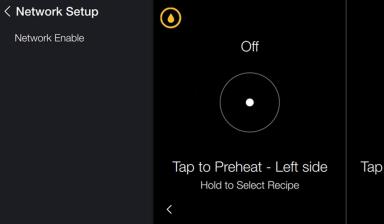
Select Network Enable.
-
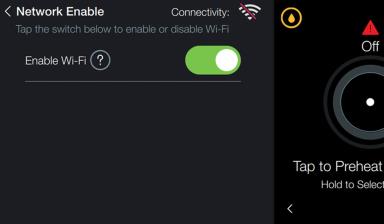
Tap the slide button to enable Wi-Fi.
-
If the gray slide button turns green, the dongle is active.
-
A Wi-Fi symbol with a red strike-thru line indicates enabled but not connected to the local access point.
-
A Wi-Fi symbol without a red strike-thru line indicates enabled and connected to the local access point.
-
-
If the gray slide button remains gray, the region selection during the initial setup is not approved, the user will not be allowed to enable the network. Clicking on the slide switch will have no effect. Contact Technical Support.
-