Search Tips



Accessing the HENNYLINK™ Portal
IMPORTANT! Applies to countries where Henny Penny connectivity is available.
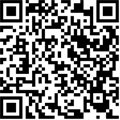
The owner operator or the administrator for HENNYLINK™ portal, will receive an email with login information. If not, Scan the QR code with a phone / tablet or visit https://commissioning.hennylink.com/ to register. A Fryer Commissioning page opens.
-
Access from phone, tablet, PC, or Mac in any major browser.
-
Bookmark the HENNYLINK™ portal link.
-
Your dashboard displays filtering, oil life, alerts, usage, and more.
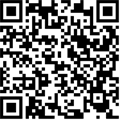
Restaurant Manager Access to HENNYLINK™ Portal
If the owner / operator or someone else is the administrator, store managers do not automatically have access to the HENNYLINK™ portal dashboard. To give a store manager access:
-
The owner / operator or admin, adds the manager as Restaurant Manager for the fryer’s serial number. Contact the owner operator to be added to their HENNYLINK™ portal account.
-
The manager receives an email invite.
-
The manager creates / updates their password.
-
The manager logs in to view the dashboard, which displays statistics for filtering, oil life, alerts, usage, and more.
Quick Reference Checklist
Use this checklist to ensure the network connection steps are complete.
☐ Strong on-site Internet / Wi-Fi at fryer location (0 to –80 dBm).
☐ MAC address whitelisted (if your network requires it). Speak to your IT personnel to find out, if you are unsure.
☐ Wi-Fi enabled on fryer (toggle is green).
☐ Connected to your Wi-Fi network (when Wi-Fi icon has no red line).
☐ Cloud Connection: Connected.
☐ ULA: Accepted.
☐ Owner / operator and store manager(s) set up in HENNYLINK™ portal.
☐ If needed, obtain a cellular gateway, for example the model ICG-150 cellular gateway.
When will my fryer start sending data?
Your fryer begins sending data when all three are true: